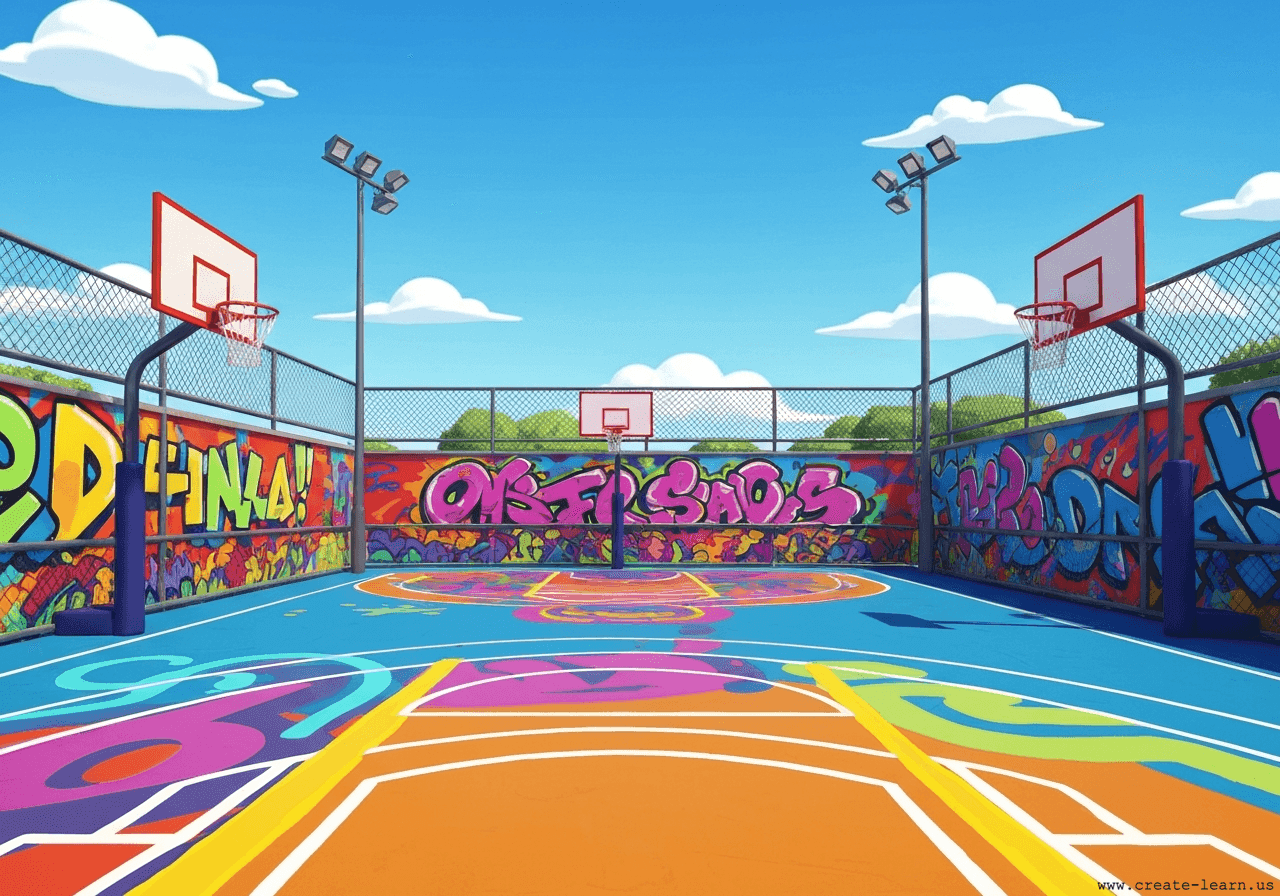
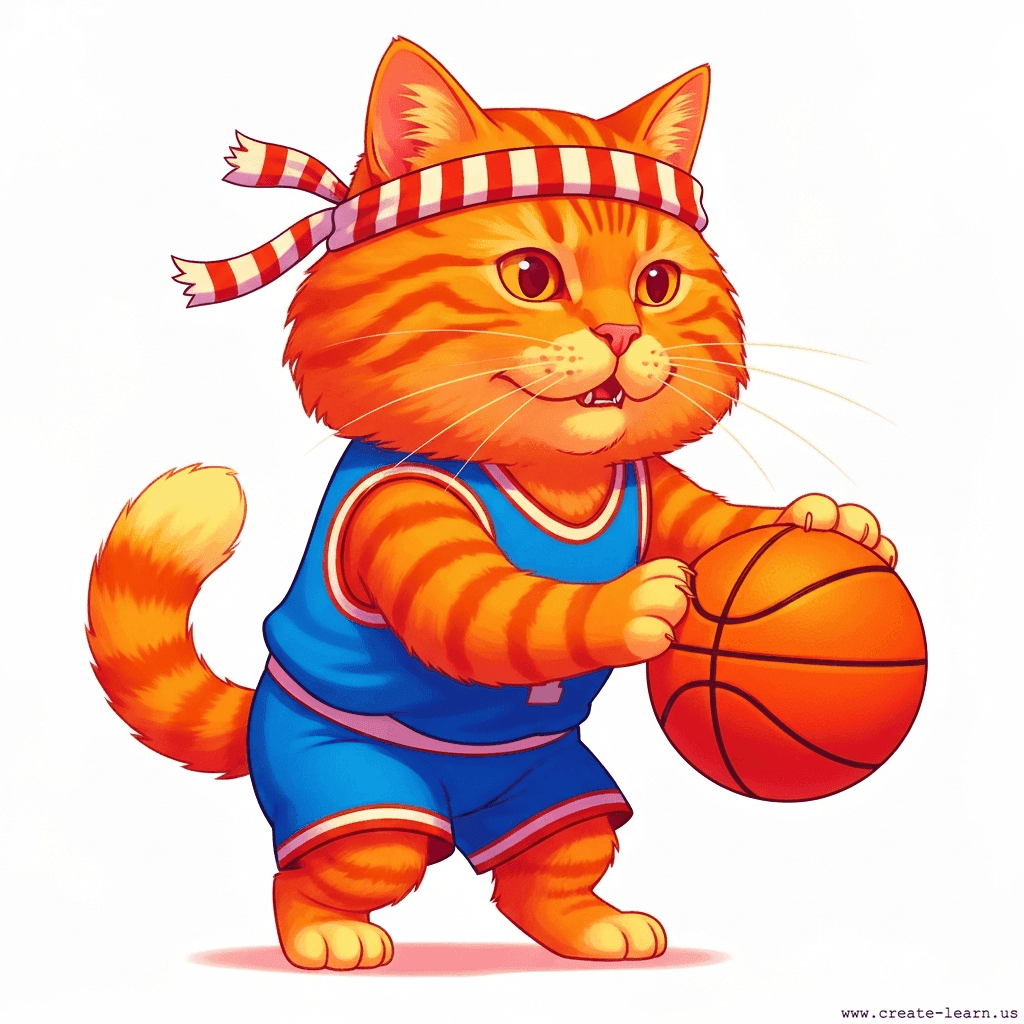
Control the jersey-wearing Cat as it moves left and right across the court using the arrow keys. Press and hold the Spacebar to charge a 'Power' variable. Upon release, the Cat creates a clone of itself that switches to a basketball costume, launching toward the hoop using advanced parabolic motion. Use sensing blocks to detect if the basketball clone touches the hoop, triggering a 'Goal' broadcast that increments the 'Score' variable and resets the Cat's position.
These are the high level steps to create this project. Try to create the project on your own first as much as possible, before checking the detailed solution samples below.
This section provides detailed, step-by-step instructions on how to build the project. There are many ways to create a project, so feel free to explore different approaches. Please note that these instructions are Al-generated, so errors may occur and the coding blocks may not map to Scratch exactly. But it should serve as very valuable references. Stay attentive as you follow along, and enjoy!
Initialize the game environment. Add two costumes to your Cat sprite: one with the Cat in a basketball jersey, and another showing just the basketball. Create three variables for all sprites: 'Score', 'Power', and 'Gravity'. Write a script to let the Cat walk left and right across the bottom of the screen using the Arrow keys.
Program the Spacebar to charge up your shot. While holding down the Spacebar, the 'Power' variable will steadily increase up to a maximum limit. Once the Spacebar is released, the Cat will trigger a clone of itself to act as the basketball.
Configure the clone's behavior. When the clone starts, immediately switch its costume to the basketball. Use the 'Power' value to set its horizontal speed (X velocity) and vertical starting push (Y velocity). Use a loop to update the basketball's position, gradually decreasing its vertical speed to simulate realistic gravity.
Create a separate target sprite for the Hoop. When the Hoop receives the 'Goal' message, it increases the 'Score' variable, plays a sound, and broadcasts a reset command to return the jersey-wearing Cat to its starting position for the next shot.
It is common to have bugs in the code. Here are some of issues you might run into.
Enroll your child in award-winning online Scratch coding classes led live by experts and designed by professionals from Google, Stanford, and MIT.
Grades K-2
Start coding with ScratchJr, and make interactive stories and gamesGrades 2-6
Code games and animations with Scratch coding, beginner to advanced levelsGrades 5-9
Fast-paced introduction to Scratch coding: build games, stories, and animationsGrades 3-6
Code a new fun Scratch game every weekThe challenge continues: Enjoy even more Scratch tutorials dreamed up by other students or use your imagination to make your own!
Explore your child's grade level to find computer science classes and learning pathways that set your student up for success.