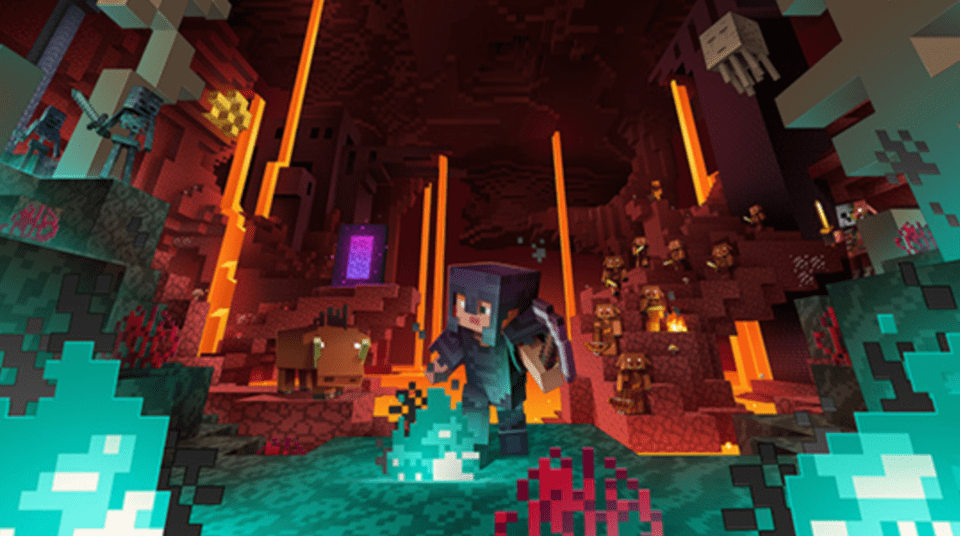

One big reason kids love Minecraft is because of the many fun mods available. You may have played them in Java or Bedrock, but did you know that Minecraft Education Edition has mods too (often called add-ons)? Even though these Minecraft Education mods (add-ons) are not the same as traditional Java mods made for Forge or Fabric. It only includes content packages that can change the appearance, sounds, items, and behavior of a Minecraft world. These may include resource packs, behavior packs, and custom worlds. In this guide, we’ll explain how Minecraft Education add-ons differ from Java mods, where to find safe and some of the most impressive add-ons, and how to get started on using the mod.
Enroll your child in award-winning live online Minecraft modding classes designed by professionals from Google, Stanford, and MIT, where they'll learn how to code their own games in Minecraft Education. Most beginners start with Minecraft Quest.
Can You Put Mods On Minecraft Education?
Just as you mod using Minecraft Java and Minecraft Bedrock, Minecraft modding is also possible in Minecraft Education. Minecraft Education mods are often called add-ons, and they have different formats:
.mcaddon | A complete add-on package. It may contain resource packs, behavior packs, structures, tools, blocks, NPC appearances, or skins. This is the current recommended format for Minecraft Education add-ons. |
.mcpack | A single resource pack or behavior pack. Some third-party Bedrock add-ons use this format. |
.mcworld | An entire Minecraft world, potentially containing embedded resource and behavior packs. It is a world package rather than an add-on alone. |
From something as simple as allowing enabling controller support to more complex modifications like making your player into a superhero using the Avengers mod. With Minecraft Education your ideas are boundless!
How To Find And Install Mods For Minecraft Education
If you are worried about installing mods do not fret as we have input detailed instructions to help you through the process.
1. Find a Mod You Would Like to Install.
You can find plenty of mods on multiple websites, but we recommend using MCPEDL, because it’s community-moderated; other sites can host un-scanned files You can look through all of the Minecraft Education mods before you find your favorite!
2. Download the Mod.
If you are using the MCPEDL site you can find the download link at the bottom of the page.
If you use another site make sure the mod is made for Education Edition. You can check if the mod will work properly by seeing if the download ends in “mcaddon” or “mcworld”.
3. Double-Click On the Download Link.
By clicking on the mod you just downloaded it will automatically open Minecraft Education Edition for you and import the mod.
4. Select Your Mod Pack.
In MEE select the server you want to play on, then go into settings. Select “Resource Packs” under “Add-Ons”
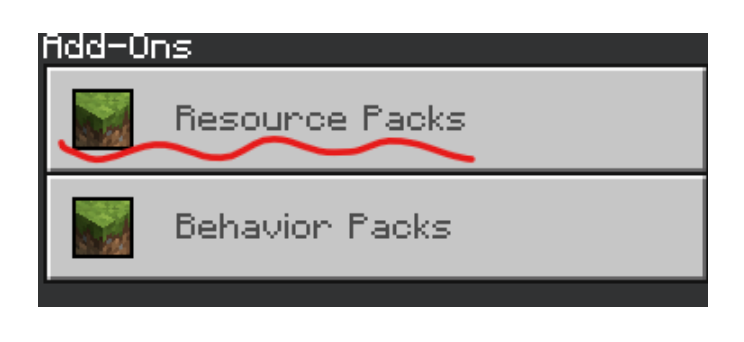
Then select “My Packs”.

Here you can activate any mod by clicking on it. Once you click it should appear under the active tab!
5. Open Your World and Play!
You're ready to enjoy your world. By the way, if you are a visual learner, you can also check out this quick YouTube tutorial for getting mods.
Explore The Best Mods For Minecraft Education Edition
Oh my! There are so many mods to choose from and it is hard to tell which mods are the best. Luckily, listed below are some of the best mods for Minecraft Education.
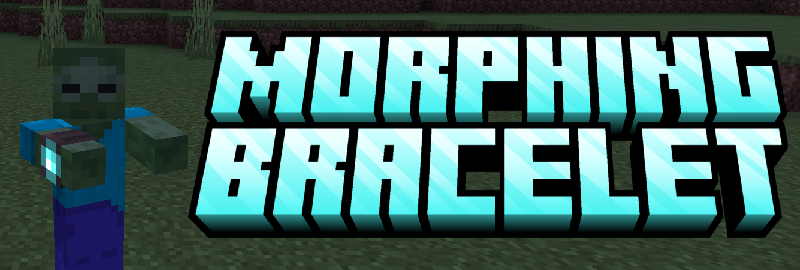
1. Morphing Bracelet Add-On
Have you ever wanted to become one of the mobs in Minecraft? The Morphing Bracelet Add-On lets players transform into different creatures and experience their special abilities. Depending on the mob you choose, you might climb walls like a spider, swim underwater, fly, or explore the world as a much smaller creature. The add-on also includes a morphing menu and supports many adult and baby mob forms.
The Morphing Bracelet is a third-party Bedrock add-on. With an over 1.5M download and a 4.2 rating, it is a favorite for many.
2. Dice Add-On
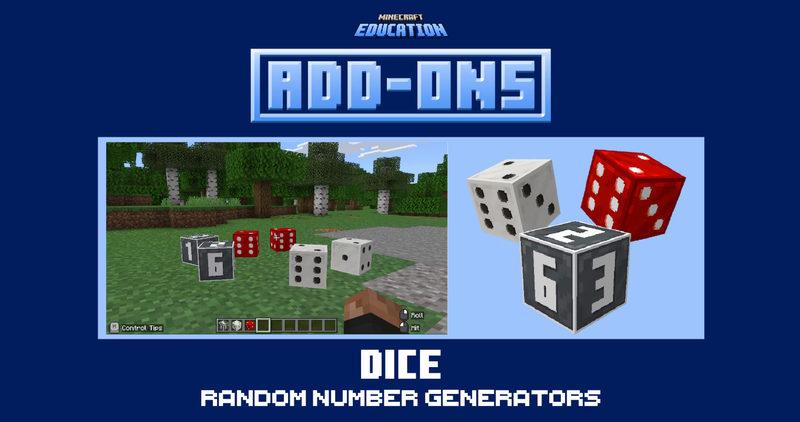
Turn your Minecraft world into a fun probability experiment with the Dice Add-On! This official Minecraft Education add-on introduces dice that students can roll inside the game. Kids can use them to create their own board games, make random decisions, record results, and explore probability through hands-on play. Because the dice can be used in so many different projects, this is one of the best Minecraft Education add-ons for both learning and creative game design.
3. SERP Pokédrock
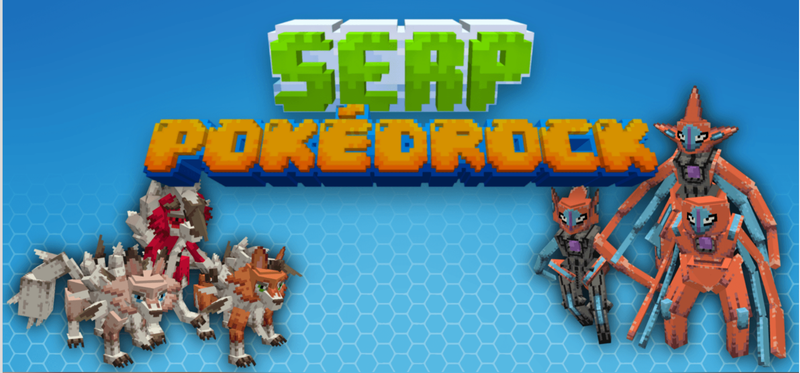
Bring Pokémon-inspired adventures into Minecraft with the SERP Pokédrock Add-On! This expansive add-on introduces collectible creatures, a battle system, real evolutions, mounts, and many other Pokémon-style gameplay features. Players can explore the world in search of different creatures, train and evolve them, challenge opponents, and even ride certain Pokémon. With more than 6 million downloads and a 4.2 rating, this is definitely one of the most popular add-on for Minecraft Education.
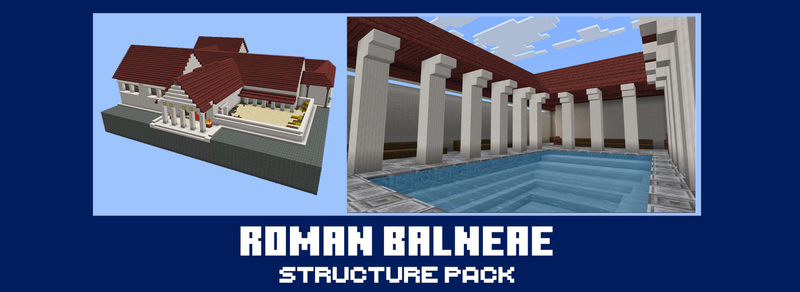
4. Roman Architecture Structure Pack
Travel back to ancient Rome without leaving Minecraft! The Roman Architecture Structure Pack lets students add ready-made Roman buildings and architectural elements to their worlds. Kids can explore historical architecture, construct an ancient city, create stories, or use the structures as inspiration for their own builds. This official add-on is a great choice for combining history, architecture, and creativity.
5. Coding with Agents Add-on
This is the very add-on that enables students to code in Minecraft Education. It is already included by default, and includes an Agent—a programmable robot that students can command using block-based MakeCode or Python. To start, kids can write programs that direct the Agent to move, place and destroy blocks, collect materials, build structures, and complete challenges. Along the way, they practice important coding concepts such as sequences, loops, conditionals, functions, coordinates, and debugging. As they develop their skills, kids can then build sophisticated games like zombie arena or fun structures such as infinite rollercoaster. The possibility is limitless.
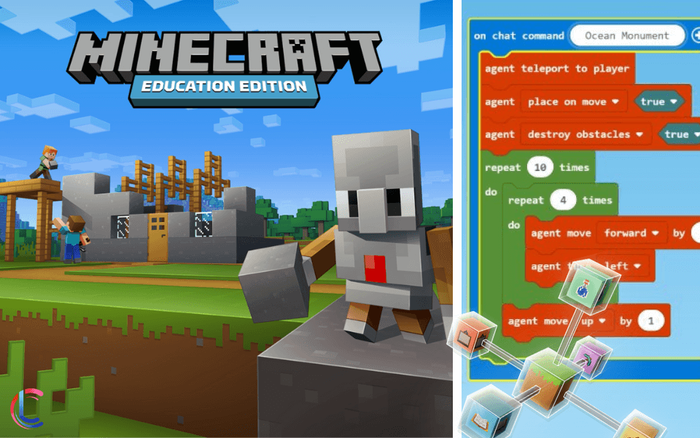
Kids write code that controls in-game “agents” — the same platform Create & Learn Minecraft Modding Quest class uses. Join a free Minecraft class to get started.
Unlike third-party Minecraft add-ons, the Agent and Code Builder are built directly into Minecraft Education. There is no additional file to download or install. To start coding, open a Minecraft Education world, press C to launch Code Builder, and choose MakeCode or Python.
Get Started With Minecraft Education Mods
Now you know all about Minecraft Education mods including how to install them and what mods are the most fun! Next, learn how to make an awesome Minecraft skin to customize your character.
Ready to go beyond installing add-ons and start coding your own?
The Coding with Agents add-on (mod #6 above) is the same platform Create & Learn’s Minecraft Modding Quest class uses to teach coding. Kids write real block-based and Python-style code to build their own mods in an expert-led small-group class (grades 3-6). Join free session to try out.
For more experienced kids ready for more advanced Minecraft modding, check out our Minecraft Code to Mod class for grades 4-8.
Frequently Asked Questions
Can you use mods in Minecraft Education?
Yes. Minecraft Education Edition supports mods, which are commonly referred to as add-ons. They allow players to customize their worlds, add new abilities, and expand gameplay.
What’s the difference between a Minecraft Education mod and a Java/Bedrock mod?
MEE mods are often called “add-ons” and use .mcaddon or .mcworld files. Java mods use .jar files loaded through Forge or Fabric — those won’t work in MEE. Bedrock also uses add-ons, and many Bedrock add-ons work in MEE too.
Do I need a school license to install mods in Minecraft Education Edition?
No — anyone with a personal MEE license can install add-ons. A school license adds access to the Microsoft Education Content library and teacher tools, but doesn’t gate mod installation.
What if the mod I want to install isn’t in .mcaddon or .mcworld format?
It’s probably not a real MEE mod. Java .jar files, .zip files with launchers, or downloads that ask you to install anything outside Minecraft are not MEE-compatible. Skip them.
Do MEE add-ons work on iPad and Chromebook?
Yes — MEE runs on Windows, macOS, iPad, and Chromebook, and most add-ons work across all four. A few Windows-specific mods may not work on iPad; the mod’s description will note this.
Where can you find mods for Minecraft Education Edition?
MCPEDL is a recommended website for browsing and downloading Minecraft Education Edition mods. When downloading from any site, ensure the file is designed for the Education Edition.
What file formats do Minecraft Education Edition mods use?
Minecraft Education Edition mods typically use the .mcaddon or .mcworld file extensions. These formats allow the game to automatically import the mod when the file is opened.
What are some of the best mods available for Minecraft Education?
Some of the best mods—or add-ons—for Minecraft Education include community created ones such as the Morphing Bracelet, which lets players transform into different Minecraft mobs; SERP Pokédrock, which introduces Pokémon-inspired creatures, battles, evolutions, and mounts; and Coding with the Agent (official add-on), which lets students program an in-game robot using MakeCode or Python.
Can you play Minecraft Education Edition mods with friends?
Yes, mods can be used in multiplayer settings. You can activate add-ons in your world or server settings, allowing you to enjoy mods like Pixelmon either by yourself or with friends.
How can kids learn to create their own Minecraft mods?
Kids can transition from playing with mods to building their own by learning to code using Minecraft Education. Structured programs like Create & Learn's live online Minecraft Modding Quest class teach kids how to code games and custom projects.
Written by Create & Learn instructor Gabrielle Cindric. Gabrielle is a Computer Science student by day and a STEM instructor by night. In her free time, she enjoys playing video games and hanging out with her poodle Bailey and cat Asphalt.